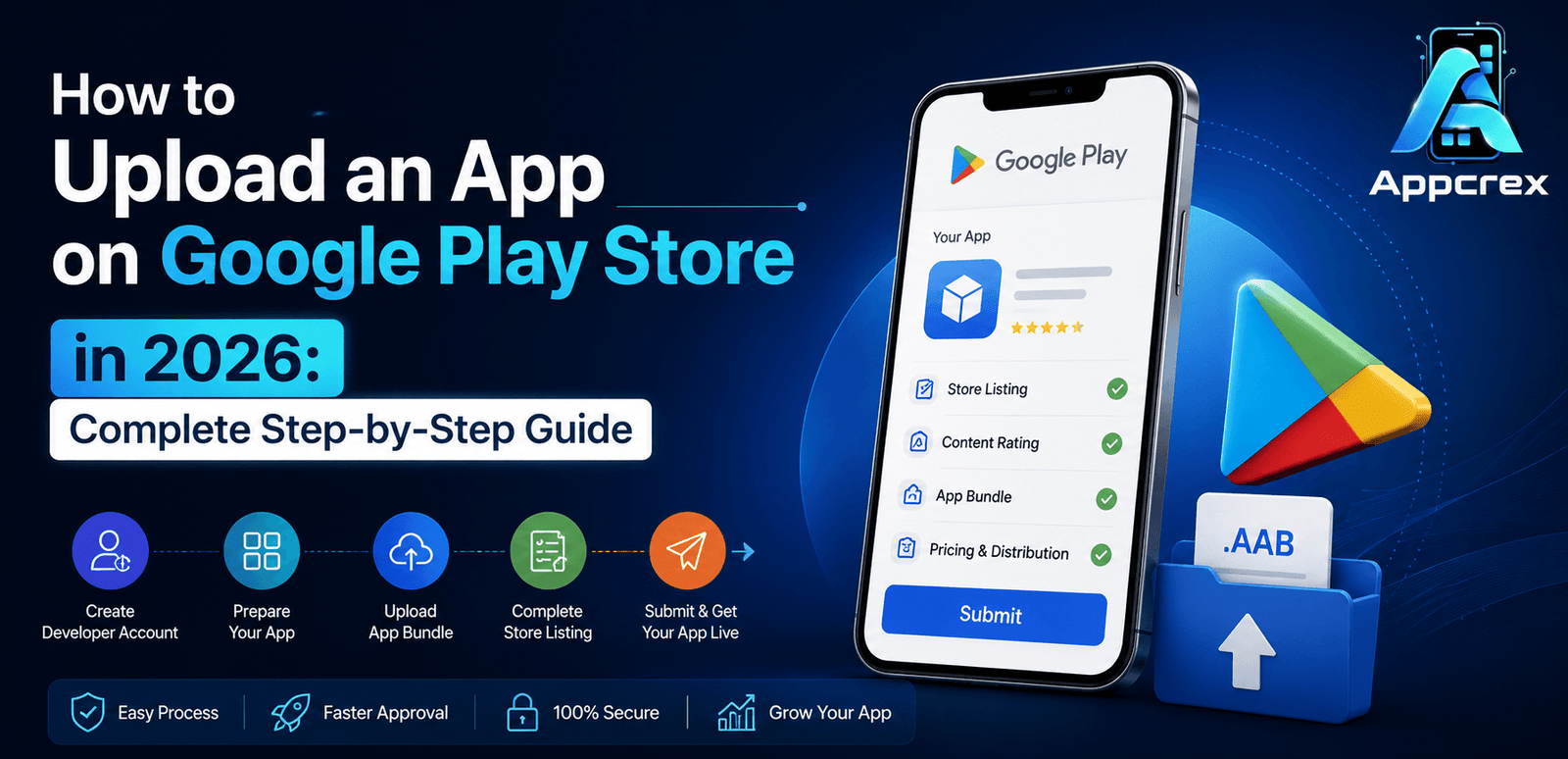
📌 Key Takeaways
- Creating a Google Play Developer Account is the first step to publishing an Android app.
- Proper app preparation, including APK/AAB files, screenshots, privacy policy, and store listing, is essential.
- Google Play Console simplifies app submission, testing, release management, and performance tracking.
- Following Google’s policies and security requirements helps avoid app rejection.
- A well-optimized app listing improves visibility, downloads, and user engagement after launch.
Introduction
Launching an Android application is one of the most effective ways for businesses to reach customers in today’s digital world. With billions of Android users globally, Google Play Store remains the largest mobile app marketplace, offering developers and businesses an opportunity to distribute their applications at scale.
Whether you’re a startup founder, entrepreneur, healthcare provider, eCommerce business owner, or enterprise organization, publishing your app on Google Play Store is a critical step in your mobile strategy.
However, many first-time developers struggle with the Android app publishing process. Questions such as:
- How do I upload an app to Google Play Store?
- How much does it cost?
- How long does approval take?
- Why do apps get rejected?
are extremely common.
This comprehensive guide answers all these questions and walks you through the complete Google Play Store app publishing process step by step.
Why Publish an App on Google Play Store?
Publishing your app on Google Play Store offers numerous benefits.
1. Access to a Massive User Base
Android powers the majority of smartphones worldwide. By publishing your app on Google Play Store, you gain access to billions of users across more than 190 countries.
2. Global Distribution
Google Play enables businesses to distribute applications worldwide without requiring separate app stores for different regions.
3. Revenue Opportunities
Apps can generate revenue through:
- Paid downloads
- In-app purchases
- Subscription plans
- Advertisements
4. User Trust
Applications listed on Google Play Store generally receive greater trust compared to apps distributed through unofficial channels.
5. Easy Updates
Developers can release updates, bug fixes, and feature enhancements directly through Google Play Console.
Understanding Google Play Console
Google Play Console is Google’s official platform for Android app publishing and management.
Using Google Play Console, developers can:
- Upload applications
- Manage releases
- Monitor installs
- Track revenue
- Analyze performance
- Respond to reviews
- Manage subscriptions
Think of Google Play Console as the control center for your Android application.
Also Read : Cross-Platform App Development Cost: Complete Pricing Guide (2026)
Google Play Store Requirements in 2026
Before you upload an app to Google Play Store, you must prepare several assets and documents.
1. Google Play Developer Account
A Google Play Developer Account is required to publish applications.
Requirements include:
- Google Account
- Identity Verification
- Contact Information
- Payment Method
2. Android App Bundle (AAB)
Google requires developers to submit applications using the Android App Bundle format.
Benefits include:
- Smaller app size
- Faster downloads
- Better device optimization
3. Privacy Policy
Most apps require a privacy policy, especially if they collect:
- User information
- Email addresses
- Phone numbers
- Location data
- Payment details
4. Store Listing Assets
Prepare the following:
App Icon
Recommended size:
512 × 512 pixels
Feature Graphic
Required size:
1024 × 500 pixels
Screenshots
At least 4–8 high-quality screenshots are recommended.
App Description
Create both:
- Short Description (80 characters)
- Full Description (4000 characters)
How Much Does It Cost to Upload an App on Google Play Store?
One of the most frequently asked questions is:
How much does it cost to publish an app on Google Play Store?
Google charges a one-time registration fee.
| Expense | Estimated Cost |
|---|---|
| Google Play Developer Account | $25 One-Time |
| UI/UX Design | $1,000 – $20,000+ |
| Android App Development | $5,000 – $200,000+ |
| Testing | $500 – $10,000+ |
| ASO Services | $500 – $5,000+/month |
| Marketing | Variable |
Compared to other platforms, Google Play Store publishing remains one of the most affordable app distribution options.
How to Create a Google Play Developer Account?
Step 1
Visit Google Play Console.
Step 2
Sign in with your Google account.
Step 3
Select:
- Individual Account
- Organization Account
Step 4
Provide business details.
Step 5
Complete identity verification.
Step 6
Pay the one-time registration fee.
Step 7
Set up your developer profile.
After approval, you can start publishing Android applications.
Step-by-Step Guide to Upload an App on Google Play Store
In Part 1, we covered Google Play Store requirements, costs, and developer account creation. Now let’s walk through the actual Android app publishing process using Google Play Console.
Step 1: Create a New App in Google Play Console
After logging into Google Play Console:
- Click “Create App”
- Enter your App Name
- Select Default Language
- Choose:
- App
- Game
- Select:
- Free
- Paid
- Accept Google’s declarations
- Click Create App
Your app project is now ready for configuration.
Step 2: Complete Your App Store Listing
Your store listing is what users see before downloading your application.
A well-optimized listing can significantly increase installs.
Add App Name
Your app title should clearly describe the application’s purpose.
Good Example
Expense Manager: Budget Tracker
Bad Example
Best Budget App 2026 Money Tracker Expense Tool
Avoid keyword stuffing.
Add Short Description
Google allows up to 80 characters.
Example:
Manage expenses, budgets, and savings with ease.
The short description should clearly explain the app’s value.
Add Full Description
Google allows up to 4000 characters.
Your description should include:
- Main features
- Benefits
- Use cases
- Unique selling points
- Important keywords
Example Structure
Introduction
↓
Key Features
↓
Benefits
↓
Why Choose This App
↓
Call-to-Action
This section plays an important role in App Store Optimization (ASO).
Step 3: Upload Visual Assets
Visual assets greatly impact conversion rates.
Many users decide whether to install an app within seconds.
App Icon
Required Size:
512 × 512 px
Requirements:
- PNG format
- High quality
- Professional design
Your icon should clearly represent your brand.
Feature Graphic
Required Size:
1024 × 500 px
Feature graphics are often displayed across Google Play promotional placements.
Best Practices:
- Clean design
- Strong branding
- Readable text
- Consistent colors
Screenshots
Screenshots showcase your app experience.
Recommended:
- 5–8 screenshots
Show:
- Dashboard
- Core features
- User journey
- Key benefits
Don’t simply show screens—highlight value.
Promotional Video (Optional)
Videos can increase conversion rates significantly.
Recommended length:
15–30 seconds.
Show:
- Main features
- User interactions
- Benefits
Step 4: Upload Android App Bundle (AAB)
Google now requires Android App Bundles (AAB) for new app submissions.
Also Read : React Native vs Flutter: Which Framework Should You Choose for Mobile App Development in 2026?
What is Android App Bundle?
Android App Bundle is Google’s preferred publishing format.
Benefits include:
- Smaller downloads
- Better optimization
- Improved performance
- Faster installations
Generate Android App Bundle
Android Studio
Navigate to:
Build
↓
Generate Signed Bundle/APK
↓
Android App Bundle
↓
Generate
Flutter
Use:
flutter build appbundleReact Native
Generate a signed AAB through Android Studio.
Upload the AAB File
Inside Google Play Console:
Production
↓
Create New Release
↓
Upload App Bundle
↓
Select AAB File
↓
Upload
Google automatically validates your bundle.
Step 5: Configure App Content
Google requires several mandatory declarations.
Failure to complete these sections can delay approval.
Privacy Policy
Add your Privacy Policy URL.
Your policy should explain:
- Data collection
- Data storage
- Data usage
- User rights
Most applications require this.
App Access
If users must log in:
Provide test credentials.
Google reviewers need access to verify functionality.
Ads Declaration
Specify whether your app contains advertisements.
Options:
- Yes
- No
Always answer accurately.
Target Audience
Select the intended audience:
- Children
- Teenagers
- Adults
Google uses this information for compliance reviews.
Step 6: Complete Data Safety Form
The Data Safety section is mandatory.
Google requires disclosure regarding:
Data Collected
Examples:
- Email addresses
- Phone numbers
- Location data
- Payment information
Declare whether data is shared with third parties.
Security Practices
Examples:
- Data encryption
- Secure transmission
- User deletion requests
Transparency improves user trust.
Step 7: Choose App Category
Selecting the right category improves discoverability.
Popular categories include:
Business
CRM, productivity, collaboration apps.
Finance
Banking and fintech applications.
Health & Fitness
Healthcare and wellness apps.
Education
Learning management systems and educational apps.
Shopping
Choose the category that best matches your app.
Step 8: Configure Pricing and Distribution
Next, configure how users can access your app.
Free App
Most startups launch as free applications.
Benefits:
- Higher download rates
- Faster adoption
Paid App
Users pay before downloading.
Useful for premium products.
Country Distribution
Choose where your app will be available.
Options include:
- Worldwide
- Selected countries
- Specific regions
Localization can improve conversion rates.
Step 9: Test Your Application
Testing before launch is essential.
Google provides several testing environments.
Internal Testing
Best for:
- Developers
- QA teams
- Internal stakeholders
Recommended:
5–20 testers.
Closed Testing
Best for:
- Beta users
- Early adopters
- Client feedback
Closed testing helps identify issues before launch.
Open Testing
Allows broader public testing.
Useful for:
- Market validation
- User feedback
- Performance monitoring
Also Read : OTT Platform Development Company: Features, Cost, Tech Stack & Trends (2026)
How Long Does It Take to Upload an App on Google Play Store?
The upload process itself takes only a few minutes.
However, Google review time varies.
| Stage | Estimated Time |
|---|---|
| Account Setup | 1–2 Days |
| Store Listing Setup | 1–3 Hours |
| App Upload | 10–30 Minutes |
| Review Process | Few Hours – 7 Days |
| App Goes Live | Immediately After Approval |
Apps in healthcare, finance, and children’s categories may require additional review.
Also Read : How to Upload an App to the Apple App Store: Step-by-Step Guide (2026)
Step 10: Submit App to Google Play Store
Once everything is complete:
Review Release
↓
Start Rollout to Production
↓
Submit
Google will begin reviewing your application.
Google Play Store Publishing Checklist
Before clicking Submit, verify:
✅ Google Play Developer Account Created
✅ Android App Bundle Prepared
✅ App Icon Uploaded
✅ Feature Graphic Added
✅ Screenshots Uploaded
✅ Short Description Added
✅ Full Description Added
✅ Privacy Policy Linked
✅ Data Safety Form Completed
✅ Testing Finished
✅ Policies Reviewed
✅ Release Created
This checklist can help prevent approval delays and rejections.
App Approval, ASO, Marketing & FAQs
In the previous sections, we covered Google Play Console setup, app requirements, Android App Bundle uploads, testing, and submission. Now let’s explore how to get your app approved, improve rankings, increase downloads, and achieve long-term success on Google Play Store.
Common Reasons Apps Get Rejected by Google Play Store
Many developers successfully upload their app but fail during Google’s review process. Understanding common rejection reasons can save time and prevent delays.
1. Policy Violations
Google Play has strict developer policies.
Common violations include:
- Misleading app descriptions
- Spam content
- Restricted content
- Deceptive functionality
Always review Google’s latest policies before submitting your app.
2. Missing Privacy Policy
A privacy policy is mandatory for most applications.
Apps collecting:
- Email addresses
- Phone numbers
- Location data
- Payment details
must clearly explain how user data is collected and used.
3. Broken Functionality
Applications containing:
- Crashes
- Non-working buttons
- Login issues
- Payment failures
are likely to be rejected.
Always test your app thoroughly before submission.
4. Permission Abuse
Requesting unnecessary permissions is a major issue.
For example:
- Camera access without camera functionality
- Location access without location-based features
- Contact access without valid reasons
Only request permissions required by your application.
5. Copyright Violations
Using copyrighted content without authorization can result in immediate rejection.
Examples include:
- Logos
- Images
- Videos
- Audio files
- Brand assets
Ensure all content is legally licensed.
6. Malware or Security Risks
Google Play Protect scans every application.
Apps containing:
- Malware
- Spyware
- Unsafe SDKs
- Unauthorized tracking systems
will be removed or rejected immediately.
Google Play Store Policies Every Developer Should Know
To successfully publish an app on Google Play Store, developers must understand key policies.
1. User Data Policy
Developers must disclose:
- What data is collected
- Why it is collected
- How it is stored
- How users can request deletion
Transparency is essential.
2. Payments Policy
Apps selling digital goods must comply with Google’s payment policies.
Examples include:
- Premium subscriptions
- Digital memberships
- Virtual products
3. Families Policy
Apps targeting children have additional compliance requirements.
These include:
- Safe content
- Limited data collection
- Age-appropriate advertising
4. Medical and Healthcare Policy
Healthcare apps must provide accurate information and follow industry standards.
Healthcare applications should not make misleading medical claims.
5. Financial Services Policy
Banking, fintech, and lending apps must comply with additional regulations.
Incorrect disclosures can result in rejection.
Also Read : How Much Does It Cost to Develop a Mobile App in Kuwait? Complete Pricing Guide (2026)
Common Mistakes to Avoid During Android App Publishing
Many businesses delay app launches because of avoidable mistakes.
1. Incomplete Store Listing
Missing screenshots, descriptions, or graphics can affect approval and conversions.
2. Poor App Screenshots
Screenshots should highlight benefits, not just app screens.
3. Ignoring ASO
Without App Store Optimization (ASO), your app may struggle to gain visibility.
4. Lack of Testing
Always test your app across multiple Android devices and versions.
5. Weak Descriptions
Store descriptions should include relevant keywords and user benefits.
App Store Optimization (ASO) After Publishing
Publishing an app is only the beginning.
To increase visibility and downloads, you need App Store Optimization (ASO).
ASO is similar to SEO but focuses on app marketplaces.
Benefits include:
- Higher rankings
- More organic installs
- Better conversion rates
- Lower acquisition costs
1. Optimize Your App Title
Include relevant keywords naturally.
Example:
Expense Manager: Budget Tracker
This helps users and Google understand your app.
2. Optimize App Description
Use keywords such as:
- Upload App to Google Play Store
- Android App Publishing
- Google Play Console
- Budget Tracker
- Expense Management App
Natural keyword placement improves discoverability.
3. Improve Screenshots
Use screenshots that clearly communicate value.
Show:
- Features
- Benefits
- User outcomes
4. Collect Positive Reviews
Ratings and reviews directly impact rankings.
Encourage users to leave feedback after positive experiences.
5. Update Regularly
Frequent updates signal quality and active maintenance.
Updates can improve:
- Rankings
- User retention
- Performance
How to Increase App Downloads?
Even approved apps need marketing support.
1. Content Marketing
Create blog content around your app’s niche.
Examples:
- Guides
- Tutorials
- Industry insights
Content helps attract organic traffic.
2. Search Engine Optimization (SEO)
Optimize your website for relevant keywords.
SEO can drive targeted users to your app page.
3. Social Media Marketing
Promote your application on:
- X (Twitter)
- YouTube
Consistent marketing increases visibility.
4. Influencer Marketing
Partnering with influencers can significantly boost app downloads.
Choose creators relevant to your audience.
5. Paid Advertising
Popular advertising channels include:
- Google Ads
- Meta Ads
- YouTube Ads
- App Campaigns
Paid campaigns can accelerate growth.
Google Play Store vs Apple App Store Publishing
Many businesses publish apps on both Android and iOS.
| Feature | Google Play Store | Apple App Store |
|---|---|---|
| Registration Fee | $25 One-Time | $99/Year |
| App Format | AAB | IPA |
| Review Time | Few Hours – 7 Days | 1–7 Days |
| Developer Platform | Google Play Console | App Store Connect |
| Market Reach | Larger Android Audience | Strong iOS Audience |
For many startups, Google Play Store is often the first publishing platform because of its lower entry cost.
Why Hire an Android App Development Company?
Publishing an app involves much more than uploading a file.
Businesses often require assistance with:
- Development
- Testing
- Security
- Compliance
- ASO
- Publishing
An experienced Android App Development Company can simplify the entire process.
Benefits include:
- Faster deployment
- Better user experience
- Reduced rejection risks
- Professional support
- Ongoing maintenance
Why Businesses Choose Professional Android App Development Services?
Professional Android App Development Services help businesses launch apps efficiently and avoid common publishing mistakes.
Services often include:
- Custom Android App Development
- Google Play Store Publishing
- App Store Optimization Services
- Quality Assurance Testing
- UI/UX Design
- App Maintenance
Working with experts can significantly improve launch success.
Google Play Store Publishing Services by AppCrex
At AppCrex, we help startups, enterprises, and growing businesses successfully publish Android applications on Google Play Store.
Our services include:
1. Android App Development
Custom Android applications built for scalability and performance.
2. Google Play Store Publishing
Complete submission and approval support.
3. Google Play Console Setup
Configuration of developer accounts and publishing settings.
4. App Store Optimization Services
Improve visibility, rankings, and downloads.
5. UI/UX Design
Create engaging and user-friendly interfaces.
6. Quality Assurance Testing
Identify bugs before launch.
7. Maintenance & Support
Continuous updates and performance improvements.
Whether you’re launching a new product or updating an existing application, AppCrex can help ensure a smooth publishing experience.
Frequently Asked Questions (FAQs)
Q. How do I upload an app on Google Play Store?
Create a Google Play Developer Account, prepare an Android App Bundle (AAB), complete your store listing, configure app content settings, and submit the application through Google Play Console.
Q. How much does it cost to publish an app on Google Play Store?
Google charges a one-time developer registration fee of $25.
Q. How long does Google Play Store approval take?
Most applications are approved within a few hours to seven days, depending on app complexity and compliance requirements.
Q. Can I publish multiple apps with one Google Play Developer Account?
Yes. One account can publish multiple Android applications.
Q. What is Google Play Console?
Google Play Console is Google’s platform for managing Android app publishing, updates, analytics, and monetization.
Q. What is Android App Bundle (AAB)?
Android App Bundle is Google’s recommended publishing format that provides better optimization and smaller downloads.
Q. Can I update my app after publishing?
Yes. Developers can release updates, bug fixes, and new features anytime through Google Play Console.
Q. Why was my app rejected?
Common reasons include policy violations, privacy issues, broken functionality, copyright violations, and security concerns.
Q. What is App Store Optimization (ASO)?
ASO is the process of improving app visibility and rankings within app stores through keyword optimization, reviews, ratings, and visual assets.
Q. Do I need a privacy policy for my Android app?
Yes. Most applications that collect user data require a privacy policy.
Conclusion
Publishing an app on Google Play Store is a crucial step for businesses looking to reach Android users worldwide. By creating a Google Play Developer Account, preparing the necessary assets, configuring Google Play Console correctly, and following Google’s policies, developers can successfully upload and publish their applications.
However, publishing is only the beginning. Long-term success requires App Store Optimization (ASO), continuous updates, performance improvements, and effective marketing strategies. Businesses that invest in both app quality and visibility are more likely to achieve higher rankings, increased downloads, and sustainable growth.
If you’re looking for expert assistance with Android app development, Google Play Store publishing, or App Store Optimization Services, AppCrex can help you launch, optimize, and scale your mobile application successfully in 2026.