📌 Key Takeaways
- Prepare the app properly: Test the application, verify production settings, and generate the correct release bundle.
- Configure Play Console correctly: Complete account verification and establish clear ownership.
- Follow current requirements: Check target API levels, privacy declarations, permissions, and testing rules.
- Plan for review: Leave time to address errors, policy issues, and possible resubmissions.
- Maintain the app after launch: Monitor performance, respond to feedback, and release updates when needed.
Introduction
Publishing an Android app on the Google Play Store is a crucial step for startups, enterprises, and businesses launching a mobile product. However, successful Android app deployment involves much more than uploading an app file. Developers must prepare a production-ready application, configure Google Play Console, complete app signing, test the application, meet platform policies, and submit a release for review.
Whether you are launching an e-commerce app, an AI-powered application, a healthcare platform, or an on-demand service, understanding the Google Play Store publishing process can help you reduce delays and avoid common release problems.
This guide explains how to publish an Android app step by step, what it costs, how long deployment can take, why Google Play may reject an app, and when professional Android app deployment services can help.
What Is Google Play Store Deployment?
Google Play Store deployment is the process of preparing, testing, submitting, publishing, and maintaining an Android application through Google Play Console.
It connects app development with public distribution. Before an app becomes available to users, developers must verify its functionality, prepare a release build, configure signing, provide accurate store information, and complete applicable policy declarations.
Google Play also provides tools for testing, release management, app performance monitoring, and delivering updates.
Common applications that require Google Play deployment include:
-
E-commerce and retail applications
-
Food delivery and grocery apps
-
Healthcare and telemedicine platforms
-
FinTech and digital payment applications
-
AI-powered mobile apps and chatbots
-
Logistics and fleet management software
-
Education and online learning apps
-
Enterprise and SaaS mobile applications
For businesses, deployment is not just a technical task. It is part of the product launch strategy, user acquisition plan, security process, and long-term maintenance cycle.
How to Publish an Android App on the Google Play Store

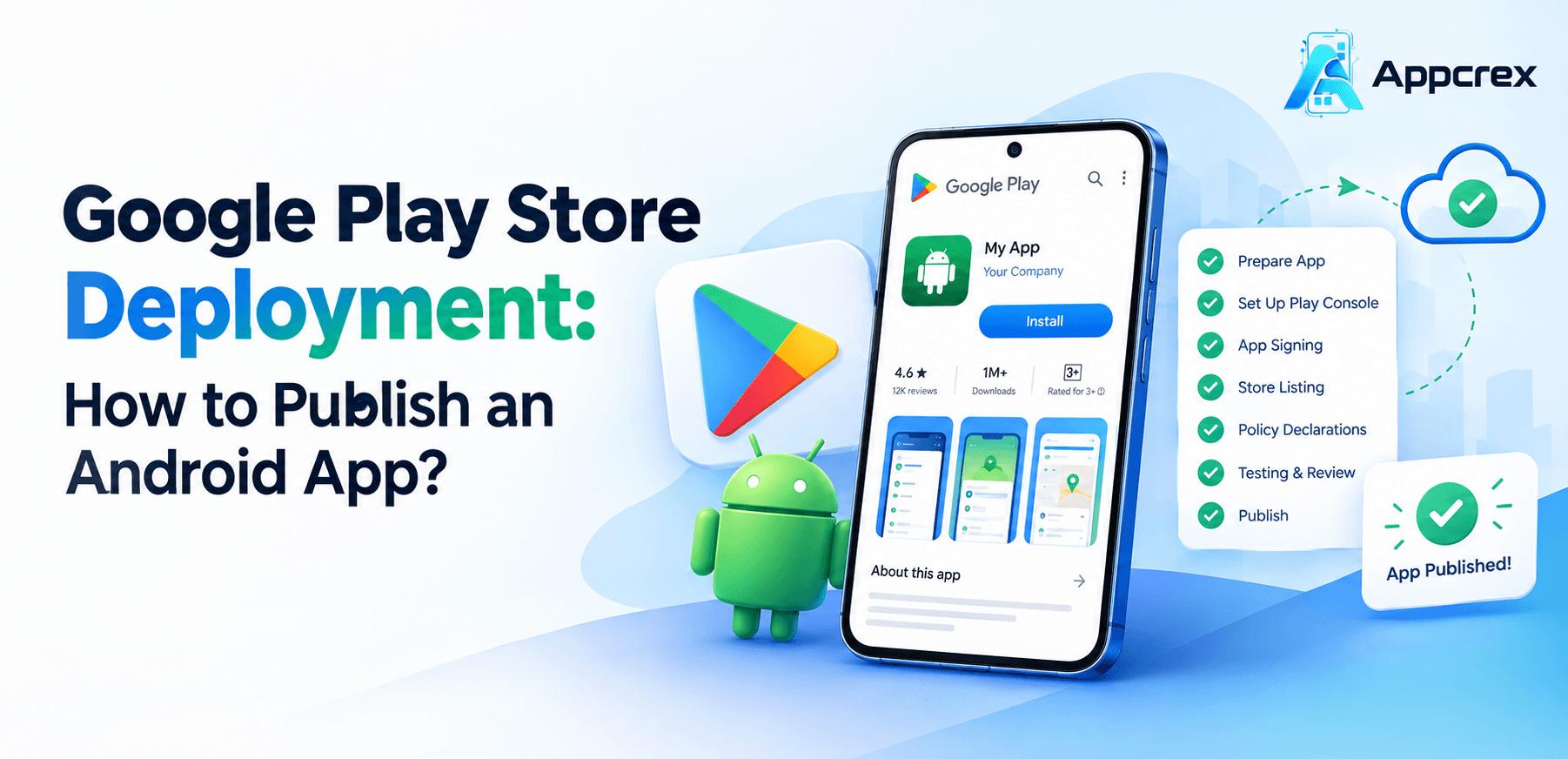
Publishing an Android app generally involves the following stages:
01: Prepare the application
Complete development, QA, security checks, and production configuration.
02: Set up Play Console
Register the developer account and complete verification.
03: Build and sign the app
Generate the release AAB and configure signing.
04: Create the store listing
Add the app description, screenshots, icon, and contact information.
05: Complete policy requirements
Submit accurate privacy, audience, content, and permission declarations.
06: Test and submit
Use the appropriate testing track and submit an eligible release.
07: Publish and monitor
Manage rollout, crashes, feedback, and future updates.
Step 1: Prepare Your Android App for Deployment
Before creating a release, confirm that the application is ready for real users.
An app that works on a developer’s device may still contain crashes, incomplete features, security weaknesses, or compatibility problems on other devices.
Review the following areas before deployment.
Functionality testing: Verify registration, login, search, payments, notifications, and other core features.
Performance testing: Check loading speed, memory usage, API response times, and app responsiveness.
Security testing: Protect authentication tokens, remove development credentials, use secure network communication, and review data storage.
Device compatibility: Test different screen sizes, supported Android versions, and relevant hardware configurations.
Backend readiness: Confirm that production servers, databases, APIs, payment gateways, and notification services are operational.
User experience: Check navigation, form validation, error messages, permission requests, and accessibility.
For example, a food delivery app should be tested from restaurant discovery through checkout and order tracking. A healthcare app may also require checks for sensitive data handling, authentication, and access permissions.
Fix critical bugs before preparing the production build. A stable application is easier to test, review, and maintain.
Step 2: Create a Google Play Console Developer Account
To distribute an app through Google Play, you need the appropriate developer account.
Visit the official Google Play Console and follow the registration process.
Google’s standard full-distribution developer account has a US$25 one-time registration fee. You must accept the applicable developer agreement and complete the required verification process.
During registration:
-
Sign in with your Google Account.
-
Select the appropriate developer account type.
-
Provide accurate identity and contact details.
-
Complete the required verification steps.
-
Pay the registration fee.
-
Secure your account and configure access for authorized team members.
Should you choose a personal or organization account?
Choose the account type that reflects who owns and operates the application.
-
Personal account: Generally intended for individual developers.
-
Organization account: Generally appropriate for a registered business, company, nonprofit, or other eligible organization.
Organization accounts may require additional verification, including a D-U-N-S number. Check the current requirements before registering.
For a business-owned application, establish account ownership and access policies before hiring an external Android app development company. This helps the business retain control over its app and future releases.
Step 3: Create Your App in Google Play Console
After your account is ready, sign in to Play Console and create a new application.
You will typically need to enter:
-
App name
-
Default language
-
App or game classification
-
Free or paid distribution selection
-
Developer contact information
-
Required terms and policy acknowledgments
Once the app is created, Play Console provides a dashboard showing the setup tasks required before launch. Some tasks are mandatory and must be completed before you can publish.
Choose the package name carefully
An Android package name, also called an application ID, identifies your app.
For example:
com.company.productname
Use a package name that represents the product and can remain consistent throughout its lifecycle. Changing the application ID generally means creating a different app identity rather than issuing a routine update.
Before development or deployment, confirm:
-
Who owns the application ID
-
Which developer account will publish the app
-
Who controls the signing credentials
-
How future releases will be managed
These decisions are particularly important when transferring an existing application from another developer.
Step 4: Generate an Android App Bundle (AAB)
The next step is to prepare the application package for release.
For most new Google Play applications, the standard publishing format is the Android App Bundle (.aab). Google Play uses the uploaded bundle to generate optimized APKs for compatible devices.
Before generating the bundle, your development team should:
-
Switch to the production configuration.
-
Verify the application ID.
-
Set the correct version code and version name.
-
Remove test credentials and debug-only settings.
-
Configure production API endpoints.
-
Check the target Android API level.
-
Build and validate the release bundle.
A version code must increase when you upload a new app version. The version name is the user-facing version label, such as 1.0.0 or 1.1.0.
APK vs. AAB: What is the difference?
| Feature | APK | AAB |
|---|---|---|
| Full name | Android Package Kit | Android App Bundle |
| Main purpose | Installable application package | Publishing format used by Google Play |
| Direct installation | Yes, on compatible devices | Usually requires Google Play or bundle-processing tools |
| Device optimization | Depends on the APK provided | Google Play generates suitable APKs from the bundle |
| Typical new-app workflow | Used in specific workflows | Standard publishing format for most new apps |
For a new commercial app, prepare the AAB and retain the relevant release artifacts so your team can diagnose issues and prepare future updates.
Step 5: Configure Android App Signing
Every Android application must be digitally signed. Signing helps establish app identity and allows compatible updates to be delivered securely.
Google Play App Signing is Google’s recommended approach for distributing many Play Store apps. With this arrangement, the app signing key and the upload key can serve separate purposes. The upload key authenticates the uploaded bundle, while Google Play uses the app signing key to sign APKs delivered to users.
Before uploading your release:
-
Review the signing configuration.
-
Follow the applicable Play Console App Signing workflow.
-
Protect your upload key and related credentials.
-
Limit access to authorized developers.
-
Document the release process.
-
Confirm that the team can prepare future updates correctly.
Never store private signing credentials in a public repository or share them through unsecured communication channels.
Signing problems can create unnecessary delays, especially when the app is inherited from another agency or when ownership is transferred.
Step 6: Prepare the Google Play Store Listing
Your store listing explains what your app does and helps potential users decide whether to install it.
A typical listing includes:
-
App title
-
Short description
-
Full description
-
App icon
-
Screenshots
-
Feature graphic where applicable
-
App category and relevant tags
-
Support contact details
-
Privacy policy link where required
Google recommends clear, accurate, and sufficiently detailed store listing information. Misleading descriptions, irrelevant keywords, and inaccurate claims can cause policy issues.
How to write an effective app description
A strong description should explain the user’s problem, the main features, and the benefits of using the app.
For example, a logistics app might highlight shipment tracking, delivery status updates, driver coordination, and reporting if these features are genuinely available.
Avoid:
-
Keyword stuffing
-
Unsupported claims
-
Repeated promotional language
-
References to features that do not exist
-
Unauthorized use of brand names or copyrighted material
App Store Optimization (ASO) can help improve how users discover and evaluate an app. However, keywords alone do not guarantee better rankings or downloads.
Step 7: Complete Google Play Policy and App Content Requirements
Policy compliance is one of the most important parts of Android app publishing.
Play Console requires developers to provide information about their application, its audience, data practices, content, and permissions. The exact requirements depend on the app’s features and intended users.
Review the following areas where applicable:
Privacy policy: Explain how personal information is collected, used, stored, and shared.
Data safety: Declare data practices accurately, taking account of the app and its third-party SDKs.
Target audience: Identify the intended age group and comply with additional requirements where children are included.
Content rating: Complete the required content rating questionnaire.
App access: Provide review instructions and working credentials when the app requires login or other restricted access.
Permissions: Request only the permissions required for the app’s functionality.
Advertising: Complete applicable advertising disclosures.
Account deletion: Review applicable deletion requirements if users can create accounts.
Special categories: Healthcare, financial services, children’s apps, and applications using sensitive permissions may have additional obligations.
For example, if an app includes an analytics SDK or advertising library, its data practices must be considered when completing the relevant declarations. Do not assume that an app collects no data simply because your own code does not directly store personal information.
Review the Google Play Developer Policy Center before submission.
Step 8: Meet the Target Android API Level Requirement
Google Play periodically updates its target API level requirements. An app may work correctly on a device but still fail submission if it does not target the required Android version.
Important for October 2026: Starting August 31, 2026, new apps and app updates submitted to Google Play generally must target Android 16 (API level 36) or higher. Specific exceptions apply to certain form factors, including Wear OS, Android Automotive OS, Android TV, and Android XR.
Before publishing:
-
Check the current target API level requirement.
-
Update the app’s Android build configuration.
-
Test behavior changes introduced by newer Android versions.
-
Review permission and background-processing behavior.
-
Resolve compatibility issues before generating the final release.
For existing apps, additional availability rules may apply to users on newer Android versions. Check Google’s current documentation rather than relying on an old target SDK setting.
Official reference: Google Play target API level requirements.
Step 9: Test Your Android App Before Launch
Testing helps identify issues before a public release. Google Play Console offers internal, closed, and open testing tracks, subject to the applicable account and app requirements.

Internal testing
Use a small group of trusted testers to check core functionality, installation, authentication, and critical user journeys.

Closed testing
Invite selected testers to evaluate the application and report issues before a wider release.

Open testing
Where available and appropriate, allow a broader group to test the app before production.
Google Play testing requirements for new personal accounts
For personal developer accounts created after November 13, 2023, Google requires a closed test involving at least 12 testers who remain opted in continuously for 14 days, followed by an application for production access.
This requirement does not apply identically to every account type. Check the requirements displayed in your own Play Console dashboard before setting a launch date.
During testing, check:
-
Registration and login
-
Password recovery
-
Payments and subscriptions
-
Push notifications
-
Network interruptions
-
Device compatibility
-
Permissions and privacy controls
-
App updates
-
Crash reports and error handling
Do not treat testing as a formality. It is an opportunity to find problems before they affect real users.
Step 10: Submit the App for Google Play Review
Once your release package, listing, declarations, and testing requirements are ready, submit the app through Play Console.
The typical production release workflow is:
-
Open the application in Play Console.
-
Navigate to the production release section.
-
Create a new release when eligible.
-
Upload the AAB.
-
Add release notes.
-
Review any errors and warnings.
-
Confirm the required declarations.
-
Send the changes for review.
The exact workflow can differ according to your account, app status, and the changes being submitted. Google Play may identify issues through pre-review checks before the formal review process. Critical issues must be resolved before publication.
How long does Google Play review take?
Google Play review time varies. Some submissions are reviewed relatively quickly, while others take longer depending on the account, app, and review requirements.
Google notes that certain reviews can take seven days or longer in exceptional cases.
For this reason, businesses should leave time for testing, review, corrections, and resubmission. Avoid promising a fixed launch date based only on an assumed approval period.
Step 11: Publish the App and Manage Its Release
Once the app has passed review, it can be published according to the selected release settings.
Depending on the publishing workflow, you may need to manually publish approved changes or use the relevant managed publishing options.
Before going live, confirm:
-
The correct release is selected.
-
The intended countries or regions are configured.
-
The app listing is complete.
-
The production backend is operational.
-
Customer support is ready.
-
Monitoring tools are working.
-
The team knows how to respond to urgent issues.
For eligible releases, a staged rollout can limit an update to a percentage of users before expanding it. This can reduce risk when introducing significant changes.
After launch, check availability and performance through Play Console rather than assuming that approval immediately means every user can see or install the app.
Step 12: Monitor Performance After Publishing
Publishing is the beginning of the app’s lifecycle, not the end.
Once the app becomes available, monitor the data that helps you understand quality, discoverability, and user behavior.
| Metric | Why it matters |
|---|---|
| Installs | Measures adoption |
| Store listing conversion | Shows how effectively the listing turns visitors into installers |
| Crash and ANR rates | Helps identify reliability problems |
| Ratings and reviews | Reveals user satisfaction and recurring issues |
| Retention | Shows whether users continue using the app |
| Uninstalls | May indicate usability or value problems |
| API performance | Helps identify backend bottlenecks |
| Update adoption | Shows how quickly users receive new versions |
Use these insights to prioritize bug fixes, improve onboarding, optimize the store listing, and plan future releases.
For business applications, post-launch support should also include server monitoring, security updates, backup planning, and a clear process for handling user reports.
How Much Does Google Play Store Deployment Cost?
The total cost of publishing an Android app depends on whether the app is already complete or still needs development and testing.
Google’s standard full-distribution Play Console registration fee is US$25 one time. Professional services are separate.
The following figures are illustrative planning estimates for deployment-related services, not official Google fees or fixed AppCrex pricing.
| Deployment service | Illustrative cost (USD) |
|---|---|
| Basic release preparation and upload | $100–$500 |
| QA testing and release validation | $200–$1,000 |
| Store listing assets and metadata | $100–$500 |
| Advanced deployment and compliance support | $500–$2,000+ |
These estimates can overlap. The final cost depends on the scope of work, app complexity, code quality, testing requirements, and the support package.
What affects Android app publishing costs?
1. Application complexity: A basic utility app generally requires less testing than an app with payments, real-time tracking, or complex integrations.
2. Code quality: Existing crashes, build errors, and outdated libraries may require additional engineering work.
3. Testing scope: Testing across devices, Android versions, and user journeys can increase QA costs.
4. Security and compliance: Apps handling sensitive information may need more extensive security reviews and documentation.
5. Store listing assets: Screenshots, graphics, descriptions, and localized listings can require design and content work.
6. Maintenance: Updates, compatibility fixes, and ongoing monitoring create continuing costs after publication.
If you already have a release-ready AAB, deployment may be relatively straightforward. If you are starting with an unfinished app, development and QA may represent a much larger share of the budget.
Common Google Play Store Rejection Reasons and How to Fix Them
A rejection can delay your launch, but many issues can be prevented through preparation.
| Problem | Recommended action |
|---|---|
| App crashes during review | Reproduce the issue, fix the bug, and test the corrected build |
| Inaccurate store description | Update the listing to reflect actual functionality |
| Missing or inconsistent privacy information | Review data collection, SDKs, and disclosures |
| Reviewer cannot access the app | Provide working credentials and clear instructions |
| Unnecessary sensitive permissions | Remove or justify permissions based on actual functionality |
| Incorrect target audience declaration | Complete the relevant audience requirements accurately |
| Copyright or trademark concerns | Use authorized assets and content |
| Outdated target API level | Update the build configuration and retest |
| Incomplete release setup | Resolve blocking errors in Play Console |
Google recommends accurate store listings and provides guidance for preparing an app for review.
If an app is rejected, read the specific reason in Play Console, correct the underlying issue, test the fix where necessary, and resubmit the updated release. Repeatedly submitting an unchanged app is unlikely to solve the problem.
Google Play Store Deployment vs. Apple App Store Deployment
Businesses planning to launch on both Android and iOS should understand that the two platforms have different account systems, release formats, and review requirements.
| Area | Google Play Store | Apple App Store |
|---|---|---|
| Developer platform | Google Play Console | App Store Connect |
| Typical Android release format | AAB for most new apps | iOS app archive uploaded through supported Apple tooling |
| Signing | Android app signing and Play App Signing workflows | Apple code-signing and provisioning workflows |
| Testing | Internal, closed, and open tracks where available | TestFlight and other supported testing workflows |
| Review | Google Play policy and technical review | Apple’s App Review Guidelines |
| Ongoing releases | Play Console release management | App Store Connect release management |
The exact requirements depend on the application, account, and current platform policies. Passing review on one platform does not guarantee approval on the other.
If you are preparing an iOS release as well, read our related guide: App Store Deployment: How to Publish an iOS App?
Should You Hire an Android App Deployment Company?
You can publish your app yourself if you have the required technical skills, account access, and time. However, professional support can be useful when deployment involves complex builds, policy issues, or a strict launch schedule.
An Android app deployment company may help with:
-
Production build preparation
-
AAB generation and signing configuration
-
Release testing and compatibility checks
-
Store listing setup
-
Policy declaration reviews
-
Troubleshooting build and submission errors
-
Release management
-
Post-launch bug fixes and maintenance
Hiring a specialist does not guarantee Google approval, because the application must still meet Google’s requirements. The benefit is access to technical expertise and a structured release process.
When should you consider professional deployment services?
Consider professional assistance if:
-
Another developer built your application and you need to publish it.
-
Your app has repeated build or signing errors.
-
Your first submission was rejected.
-
Your app contains payments, AI integrations, or sensitive data.
-
Your team needs structured testing across Android devices.
-
You need support for future updates and maintenance.
For startups and enterprises, the right support can help reduce avoidable errors and improve coordination between development, testing, and release management.
Google Play Store Deployment Checklist
Use this checklist before submitting your Android application.
Pre-launch checklist
0/13 complete
Reset checklist
This checklist is a practical planning aid. Always follow the requirements displayed in your own Play Console account.
Frequently Asked Questions
1. How do I publish an Android app on Google Play?
Create and verify a Play Console developer account, prepare a signed release bundle, complete the store listing and policy declarations, meet applicable testing requirements, and submit the app for review. Once approved, publish the release using the appropriate rollout settings.
2. How much does it cost to publish an Android app?
Google’s standard full-distribution developer account has a US$25 one-time registration fee. Development, QA, design, and deployment services are additional expenses.
3. Can I publish an Android app for free?
You can manage development and publishing yourself without paying an external deployment company. However, standard full-distribution publishing requires the applicable Play Console registration fee, and other project costs may apply.
4. How long does Android app deployment take?
The timeline depends on app readiness, account verification, testing, and review. New personal developer accounts subject to the closed-testing rule must complete at least 12 testers’ continuous 14-day opt-in period before applying for production access. Review can take additional time.
5. Do I need an APK or AAB to publish an Android app?
For most new Google Play apps, you should prepare an Android App Bundle (.aab). Google Play generates optimized APKs from that bundle for compatible devices.
6. Why does Google Play reject Android apps?
Common reasons include policy violations, inaccurate listing details, incomplete declarations, broken functionality, inaccessible login screens, and incorrect permissions. Check the rejection notice, fix the underlying issue, and resubmit a compliant release.
7. Can I update an Android app after publishing it?
Yes. You can prepare a new release with an increased version code, test it as appropriate, and submit it through Play Console. Updates must continue to meet applicable technical and policy requirements.
8. Can I publish an Android app without coding?
You may be able to build an app using a no-code or low-code platform, depending on its capabilities. However, you still need a release-ready application and must meet Google Play’s publishing requirements.
9. Can I publish the same app on Android and iOS?
Yes, if the product supports both platforms. However, you generally need platform-specific builds, signing, testing, store assets, and submissions. Each store has its own review requirements.
10. What happens after Google Play approves my app?
Your app can be published according to its release settings. After launch, monitor availability, crashes, user feedback, installs, and app performance. Continue maintaining the application and addressing relevant policy or compatibility changes.
11. Can I transfer my app to another developer account?
Google Play supports transfers between eligible accounts, subject to its current requirements. Review ownership, signing arrangements, account eligibility, and connected services before beginning the transfer.
12. Does publishing an app guarantee downloads?
No. Publication makes your app available through its configured distribution settings, but downloads depend on discoverability, app quality, store listing conversion, marketing, reviews, and user retention.
Conclusion
Google Play Store deployment involves much more than uploading an Android app. It requires release preparation, app signing, testing, store listing optimization, policy compliance, review, and ongoing maintenance.
For startups and businesses, following a structured publishing process can reduce avoidable delays and provide a stronger foundation for product growth. Whether you manage deployment internally or work with specialists, make sure your app is ready for production and your team can support it after launch.
Launch Your Android App with AppCrex
AppCrex helps businesses plan and build mobile applications based on their product requirements, technical needs, and business goals.
Whether you are developing a new Android application or preparing an existing app for Google Play, professional support can help with development, release preparation, testing, integrations, and ongoing maintenance.
Need help with Android app development or deployment? Explore AppCrex app development services to discuss your project requirements.